
I’ll be honest — for a long time I assumed slow Wi-Fi just meant I needed a new router. That was the default conclusion. Something feels sluggish, you blame the hardware, you start browsing Amazon for something with more antennas and a scarier name.
But then I actually started digging into why things were slow. And it turns out, most of the time, the router wasn’t even the problem.
The Router Location Is Probably Wrong
This sounds almost too simple to matter. It isn’t.
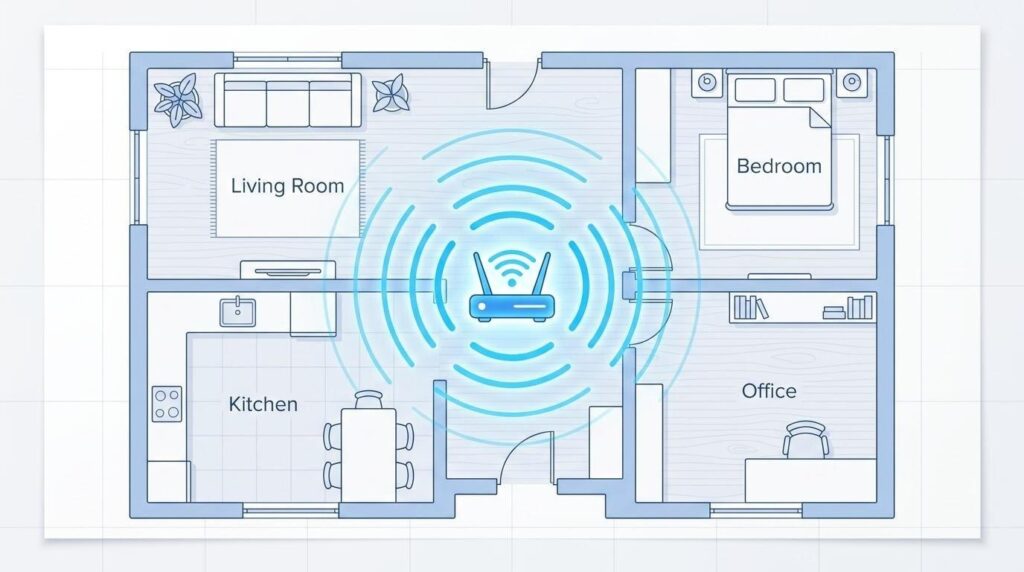
Most people put their router wherever the ISP technician left it — which is usually near the front door, or tucked inside a cabinet, or sitting on the floor behind a television. That’s not a criticism of technicians, they’re just plugging things in and leaving. But those spots are genuinely terrible for signal distribution.
Walls Are Not Equal
A regular drywall partition barely affects your signal. A concrete wall, though? That can cut your range nearly in half. I used to think walls were walls until I moved my router two meters away from a thick internal wall and suddenly my home office went from borderline unusable to completely fine. Same router. Nothing else changed.
Height Actually Matters
Routers broadcast signal outward and slightly downward. Putting it on the floor is basically asking it to beam signal into the carpet. A shelf, a bookcase, somewhere elevated and central — that’s where it wants to be. Not hidden. Not enclosed. Just… out in the open where it can breathe.
The Channel Problem Nobody Talks About
Your router broadcasts on a channel — think of it like a radio frequency. The problem is that every router in your building, your neighbor’s apartment, the café downstairs, is probably broadcasting on the same default channel. Usually channel 6. Sometimes channel 1.
When too many devices crowd onto the same channel, they interfere with each other constantly.
You can change this yourself.
Log into your router’s admin panel (usually 192.168.1.1 or 192.168.0.1 in your browser), find the wireless settings, and look for the channel option. For 2.4GHz networks, channels 1, 6, and 11 are the ones that don’t overlap — pick whichever one looks least congested. There are free apps like Wi-Fi Analyzer on Android that show you exactly which channels nearby networks are using, which makes this a lot less guesswork.
It takes maybe ten minutes and costs nothing.
2.4GHz vs 5GHz — You’re Probably On the Wrong One
Most modern routers broadcast two separate bands. The 2.4GHz band has better range but slower speeds. The 5GHz band is faster but doesn’t travel as far.
Here’s the thing — a lot of devices automatically connect to 2.4GHz because it feels more “stable.” And if you’re sitting three rooms away, fine, that probably makes sense. But if you’re working right next to your router and still connected to 2.4GHz, you’re leaving a significant amount of speed on the table for no reason.
Check which band your devices are connected to. Most routers now let you name them differently (like “HomeNetwork” and “HomeNetwork_5G”) so you can manually choose. It’s a small thing that genuinely changes the experience.
Devices That Are Silently Killing Your Speed
This one surprised me the first time I really looked into it.
Older smart home devices — cheap security cameras, older smart bulbs, early-generation smart plugs — they sit on your network constantly and some of them are surprisingly chatty. They’re not downloading anything large, but they’re sending little packets of data back and forth, all day, without ever asking permission.
The Forgotten Devices
Go into your router’s admin panel and look at the connected devices list. Actually look at it. There are probably things on there you forgot about entirely — an old tablet, a game console that’s been in a drawer for a year, a smart TV in the guest room that nobody uses. Every connected device is taking up a small slice of bandwidth and a slot in the router’s processing capacity.
Disconnect what you don’t need. It sounds trivial. It isn’t.
DNS — The Underrated Fix
Your DNS server is basically the phonebook your devices use to find websites. By default, you’re probably using whatever your ISP assigned, which is often not the fastest option.
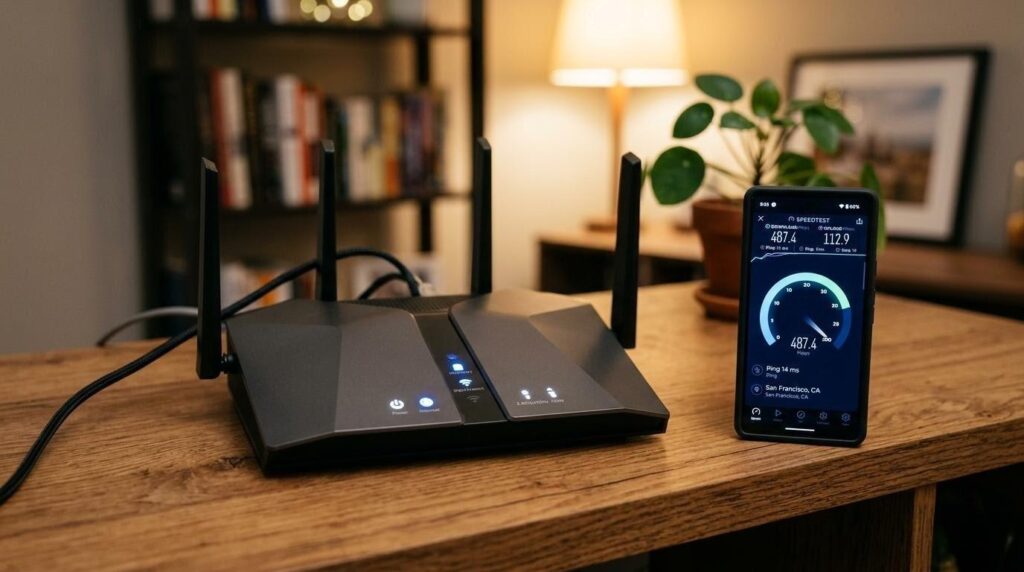
Switching to a public DNS like Cloudflare (1.1.1.1) or Google (8.8.8.8) is free, takes about three minutes in your router settings, and can noticeably reduce the time it takes for pages to start loading. It doesn’t increase your raw download speed, but it makes things feel faster because the initial connection happens quicker.
In my experience, this one gets overlooked almost universally. It’s not glamorous. Nobody’s writing enthusiastic Reddit posts about their DNS settings. But it works.
Restart the Router — But Do It Right
Everyone knows to restart the router. But most people do it wrong — they switch it off and back on immediately. The capacitors inside haven’t discharged, the memory hasn’t cleared properly, and you’ve basically accomplished nothing.
Turn it off. Wait a full 30 seconds. Then turn it back on.
Better yet, set up a scheduled weekly restart if your router supports it. Things accumulate in the memory over time — active connections, cached data, minor errors — and a proper restart clears all of that. It’s not a permanent fix for anything, but it’s the kind of small maintenance that keeps things running smoother over weeks and months.
There’s probably at least one thing on this list you haven’t tried yet. Maybe two. And none of them cost anything — which, honestly, was the thing that frustrated me most when I realized how long I’d been one firmware setting away from a noticeably better connection.