
I’ll be honest — I put this off for way longer than I should have. The TV was set up, the kids were already watching things I hadn’t approved, and I kept telling myself I’d figure out the parental controls “this weekend.” That weekend kept moving.
When I finally sat down to do it, I realized the whole thing was more layered than I expected. Not complicated exactly, just… more involved than pressing one button and calling it done.
It’s Not One Setting. It’s Several.
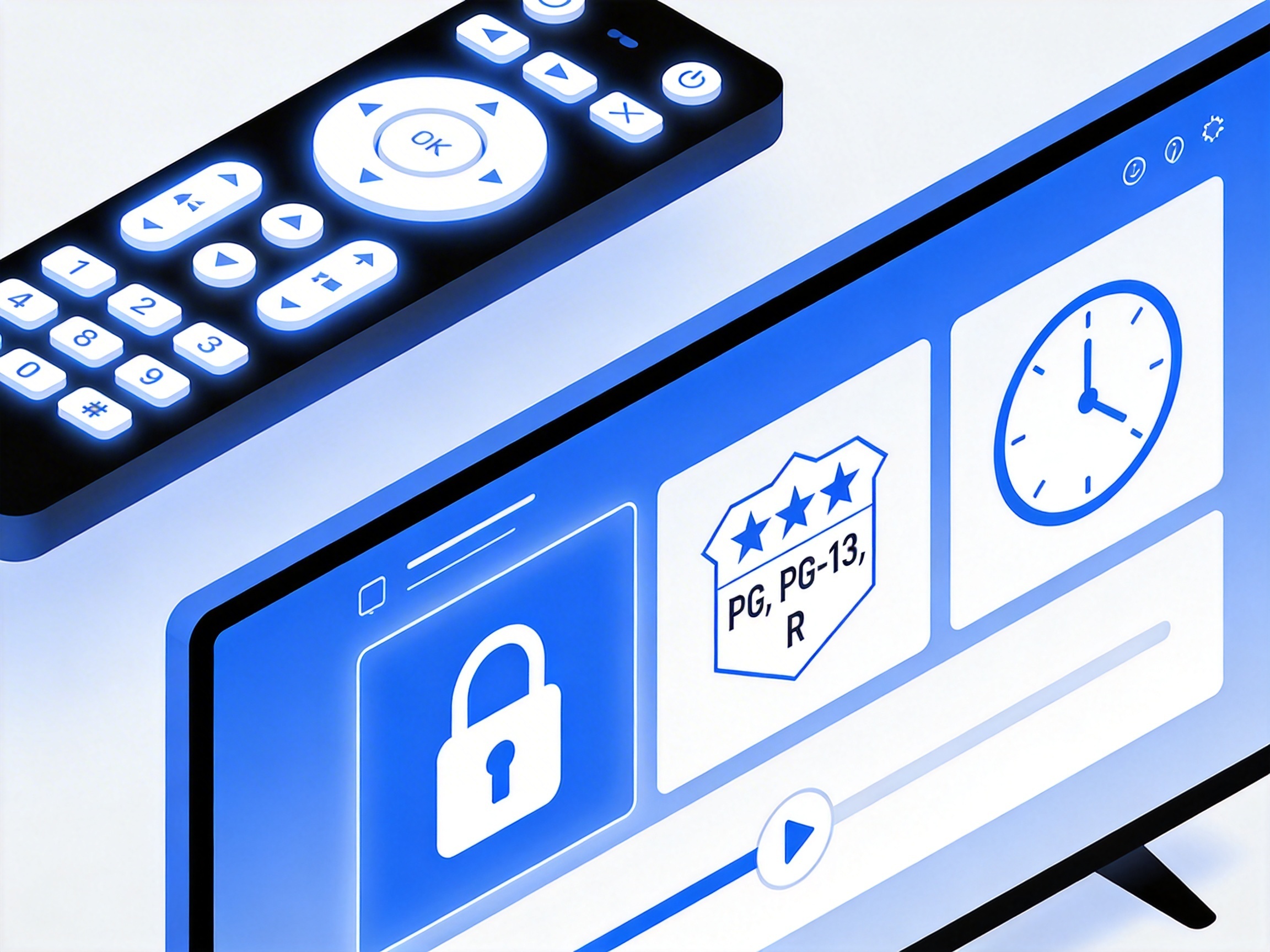
This is the part most guides skip over. There isn’t a single “kid mode” switch that handles everything. What actually works is a combination of things working together — a PIN that locks settings changes, an age-rating filter that blocks certain content automatically, maybe an app lock on top of that, and if you’re serious about it, a time limit.
Miss one layer and there’s usually a way around it.
The PIN is honestly the most important starting point. Every major brand — Samsung, LG, Hisense, Roku, Sony — defaults to 0000. Which means if you haven’t changed it, it’s not really protecting anything. Go change that first before anything else.
Samsung (Tizen): Buried But Functional
On Samsung TVs, you’re looking for Settings > All Settings > General & Privacy > Parental Settings. The layout shifts slightly depending on the model year, so don’t panic if it’s not exactly where you expect it.
From there you can lock individual apps — which I found more useful than I expected. You go into the Apps menu, select the app, and there’s a Lock option. Simple enough.
The annoying part is the PIN reset process if you forget it. Samsung’s method involves a specific remote button sequence: Mute, Volume Up, Return, Volume Down, Return, Volume Up, Return. I had to write that down the first time. It works, but it feels like a cheat code from 2003.
LG and Roku: Different Approach, Same Goal
LG keeps everything under a “Safety” menu — Settings > All Settings > General > Safety. Older webOS versions have it slightly differently, which is a little frustrating if you’re working from an older guide online.
What I liked about LG is the External Input Lock. You can actually block specific HDMI ports, which means a game console plugged into HDMI 2 can be locked independently. That’s surprisingly useful.
Roku is a different situation entirely because it splits things in two.
There’s the Roku account PIN — managed at my.roku.com — which controls app downloads and purchases. Then there’s a separate PIN specifically for the TV tuner, which you set through Settings > Parental Controls on the device itself. If you only set one and not the other, you’ve left a gap.
One thing I didn’t know until I actually tried it: before you can block live TV programs on Roku, the TV tuner needs to be set up and channels scanned first. If you skipped that during setup, the option won’t appear.
Google TV and Amazon: The Most Capable (And Most Complex)
If your TV runs Google TV — which covers a lot of Sony, some TCL, and others — the real power comes from Google Family Link. You create a child profile linked to a Family Group, and then from your phone you can set daily screen limits, lock the device remotely, and approve or deny app installs.
It requires setup on both the TV and your phone, but once it’s running it’s genuinely useful.
Amazon’s ecosystem through Fire TV and the Parent Dashboard (parents.amazon.co.uk) is the most feature-rich I’ve used. There’s a “Learn First” feature that actually blocks games and videos until daily educational goals are met. I wasn’t sure how I felt about that at first — it felt a little heavy-handed — but honestly, for certain age groups it works really well.
One thing to check on Amazon: communication features like video calling and messaging are not automatically restricted in child profiles. You have to manually go into Settings > Communications and grant or deny consent for each one.
Content Ratings: Set It and Forget It (Almost)
Most TVs let you set a maximum rating, and anything above that gets blocked automatically. In the US that means things like TV-G, TV-PG, TV-14, TV-MA for TV content, and G through NC-17 for movies.
Set the ceiling, and the system handles the rest.
In my experience this works well for broadcast content and anything that comes through the TV tuner. Where it falls apart is third-party apps. The TV’s rating system usually doesn’t reach inside something like a separately installed app. Those apps have their own internal profile and content settings that need to be configured separately.
That’s one of the bigger loopholes, and it catches a lot of parents off guard.
When the TV Settings Aren’t Enough
There are situations where built-in controls just don’t cut it. Maybe the TV has an older OS that’s limited. Maybe there are too many devices to manage individually.
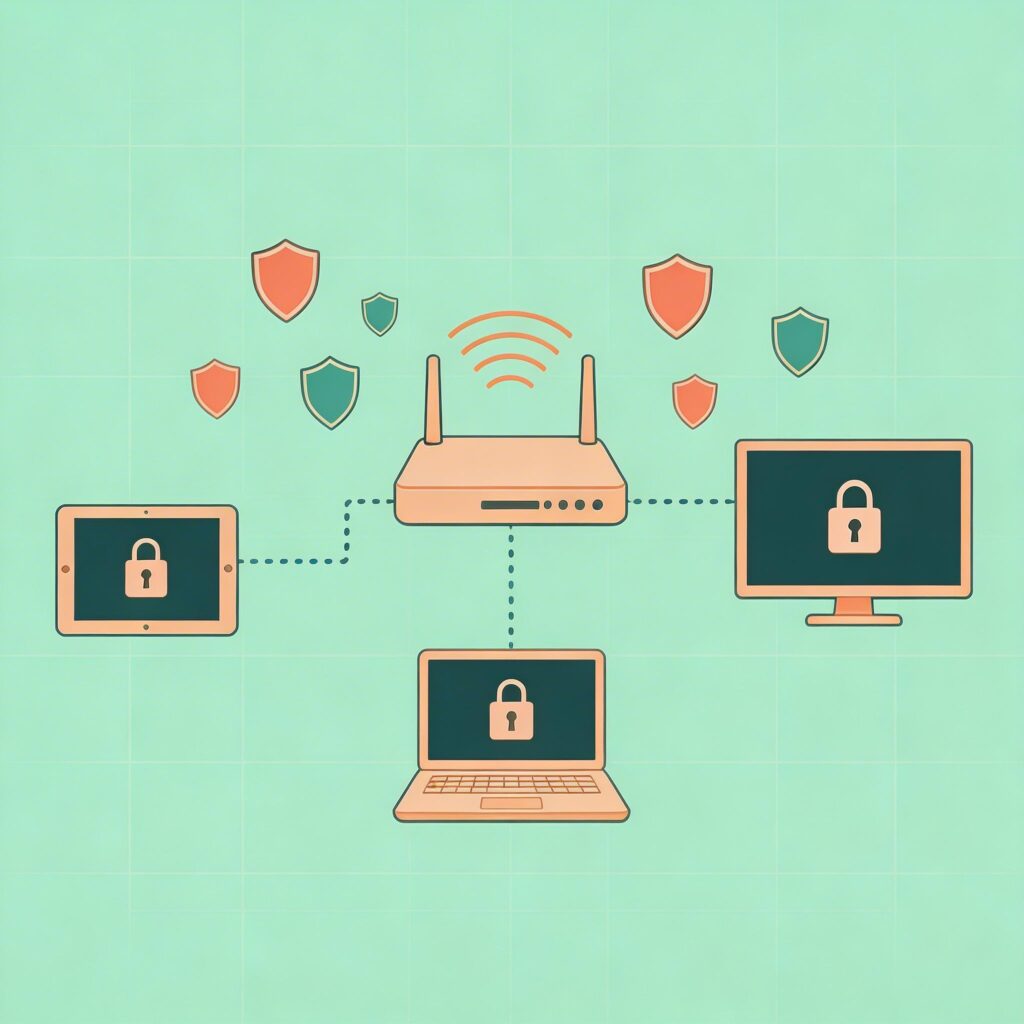
Network-level tools fill that gap.
Circle Home Plus connects to your router and lets you manage every device on the network — including TVs — from an app. You can pause internet access, set bedtime schedules, and see usage reports without touching the TV itself.
OpenDNS Family Shield works at the router level too, filtering adult content automatically across everything connected to your Wi-Fi. It requires a bit of router configuration but it runs quietly in the background once it’s set up.
These aren’t replacements for the TV’s own controls. They’re an additional layer, and in my view, the combination of both is genuinely more reliable than either alone.
A Few Things Worth Keeping in Mind
The ratings and time limits that make sense for a seven-year-old probably won’t feel right for a thirteen-year-old. These settings need to be revisited periodically — not set once and forgotten.
And honestly, the conversations you have with your kids about what they’re watching and why certain things are restricted tend to matter more than the technical setup. The controls buy you time and reduce friction. They’re not a substitute for the actual conversation.
Whether you start with the PIN today or build out the full multi-layer setup over a weekend — either way, starting somewhere is better than that endless “I’ll do it this weekend” loop I was stuck in for two months.