
There’s a remote somewhere in my apartment. I’m fairly confident it’s between the couch cushions. Or maybe it slid under the cabinet again. Either way, I stopped looking for it about three months ago, and honestly — I haven’t missed it.
My phone does everything now.
It’s Not as Simple as Just “Downloading an App”
I wish someone had told me that earlier, because that’s exactly what I assumed. I downloaded the first “universal remote” app I found, pointed my phone at the TV, and nothing happened. Not even close to working. Turns out I was missing something pretty fundamental about how this whole thing works.
The method you use depends entirely on the hardware inside your phone — and your TV.
Wi-Fi vs. Infrared: The Part Nobody Explains Properly
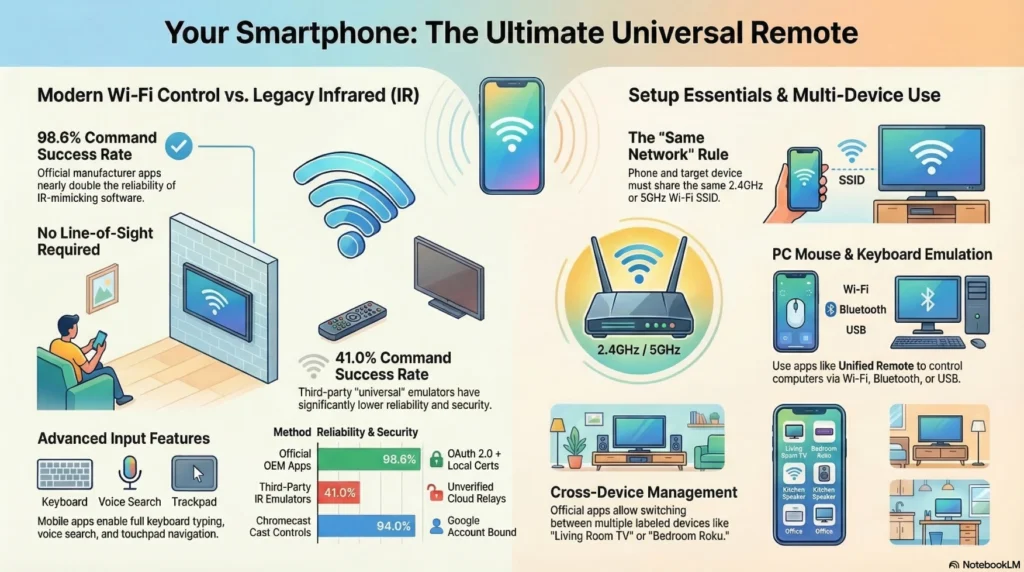
Modern smart TVs — anything made in the last five or six years — don’t use infrared signals the way old remotes do. They communicate over your home Wi-Fi network using local APIs. Your phone sends a command through the router, the TV receives it, done. No pointing required. You can control it from another room if you want.
Infrared is the old way. It requires a physical IR blaster built into your phone, and here’s the thing most people don’t know: most phones don’t have one anymore. Samsung dropped it from the Galaxy S series a while back. iPhones never had it. If you own a Xiaomi or a few older Huawei models, you might still have one. But for the majority of people reading this — you don’t, and no app in the world can change that.
I spent an embarrassing amount of time trying to make an IR emulator work on my Pixel before someone finally explained this to me.
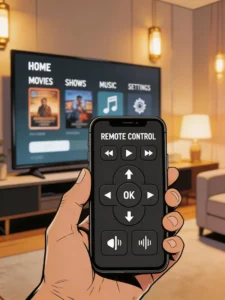
The Fastest Way: Use Your TV Brand’s Own App
If your TV was made after 2018, there’s almost certainly an official app for it. And in my experience, official apps are dramatically better than anything third-party. The command success rate genuinely feels different — faster, more responsive, less of that annoying half-second lag where you’re not sure if the button registered.
Here’s a quick breakdown of what works for which setup:
| TV / Device Type | Recommended App | Connection Method | Setup Time |
|---|---|---|---|
| Samsung Smart TV | SmartThings | Wi-Fi (Same Network) | Under 2 minutes |
| LG Smart TV | LG ThinQ | Wi-Fi (webOS) | Under 2 minutes |
| Google TV / Android TV | Google TV App | Wi-Fi + Google Account | Instant |
| Roku Device | Roku Mobile App | Wi-Fi (Local Network) | Under 90 seconds |
| Sony / TCL | Google TV App | Wi-Fi (enable in settings first) | 2–3 minutes |
| Older “Dumb” TV | External stick + above | Hardware required | 5–10 minutes |
The one catch I ran into with Sony is that you have to go into the TV settings first and manually enable something called “Remote Control via Network.” It’s buried in the menus and the app just silently fails if you haven’t done it. Took me longer than I’d like to admit.
What If Your TV Is Old?
Then your options narrow down fast. IR apps only work if your phone has the hardware. If not, the most practical solution I’ve seen is adding a $25 Chromecast or a Roku Express. Plug it into your TV’s HDMI port, set it up once, and now your old TV behaves like a modern smart TV — controllable from your phone over Wi-Fi. It sounds like a workaround, but it’s genuinely the cleaner solution.
External IR hubs exist too, like the Logitech Harmony Hub, but those feel like overkill for most people.
The Wi-Fi Problem Nobody Warns You About
This one got me for an entire afternoon once.
If your phone and TV are both connected to Wi-Fi but the app still can’t find the TV, there’s a decent chance your router has something called AP Isolation enabled. It’s a security feature that stops devices on the same network from talking to each other. Sounds useful in theory. In practice, it breaks every smart home app you’ll ever try to use.
The fix is logging into your router settings and disabling it. The exact location varies by router, but it’s usually under “Wireless” or “Advanced Settings.” Once I turned it off, every app I’d been struggling with suddenly just… worked.
Another less obvious issue: some routers treat the 2.4 GHz and 5 GHz bands as completely separate networks. If your phone connects to 5 GHz and your TV defaults to 2.4 GHz, they might end up on different subnets. Same fix — either connect both devices to the same band, or check if your router supports band steering.
Using Your Phone to Control a PC Too
This part surprised me when I first tried it. Apps like Unified Remote or just the built-in Bluetooth keyboard feature on Android turn your phone into a wireless trackpad and keyboard for your laptop. It works over Wi-Fi, Bluetooth, or even a USB cable for the most stable connection.
I use it when my laptop is connected to a monitor across the desk and I don’t want to get up. Works well for media playback especially — skipping tracks, adjusting volume, pausing a video.
The Wi-Fi version requires opening a port or two on your firewall (9512 for TCP and UDP, 9511 for discovery), but most home setups don’t have strict firewalls so it often just works out of the box.
A Quick Note on Privacy
I’m honestly a bit cautious here because I’ve seen what some of the “universal” third-party apps request. Contacts. SMS. Location. For a remote control app. It never sat right with me.
Official OEM apps generally keep everything local — your commands stay on your home network and never leave. Voice search features do go through cloud services, but most modern implementations only start listening after a wake phrase, so the microphone isn’t constantly open.
I still default to official apps wherever possible. The permissions alone make it worth it, even if the app is slightly less pretty.
The remote is probably still in the couch somewhere. I’ll find it eventually. But I stopped needing it, and that’s the more interesting part of the story.