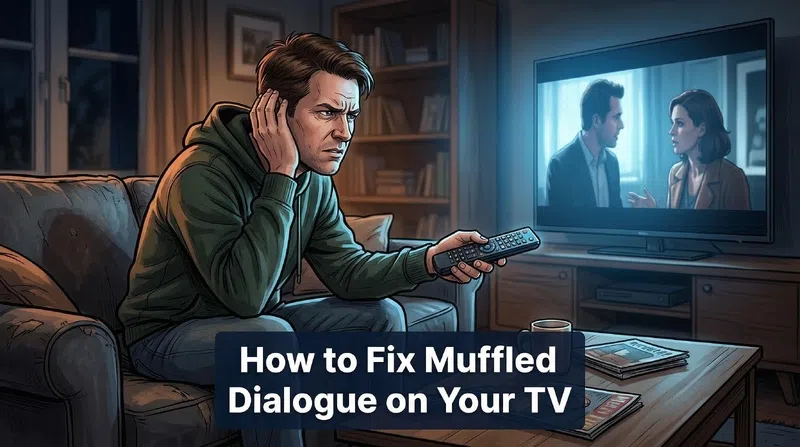

There’s this specific kind of frustration that only happens when you’re watching something at 11pm, volume already at 40, and you still can’t make out what the characters are saying. You turn it up more. Someone in the next room objects. You give up and just turn on subtitles.
That was me, more times than I’d like to admit. And for a long time I assumed it was just how TV speakers worked. Turns out, it’s not.
Why Your TV Sounds Like Everyone Is Mumbling
The short answer is that modern TVs are designed to look good, not sound good. The bezels got thinner, the frames got sleeker, and somewhere in that process the speakers got squeezed into smaller and more awkward positions. Most of them now fire downward toward the stand or backward toward the wall. The sound reaches you after bouncing off surfaces, which adds a layer of diffusion that makes dialogue feel distant.
That’s the hardware side. But there’s also a content problem. Films and prestige TV shows are mixed for cinema-grade surround sound systems. The dialogue, the score, the ambient effects, they all share similar frequency ranges, and on a two-channel TV speaker, they compete. The result is that voices get buried under the things that are supposed to sit behind them.
It’s a design problem and a mixing problem at the same time.
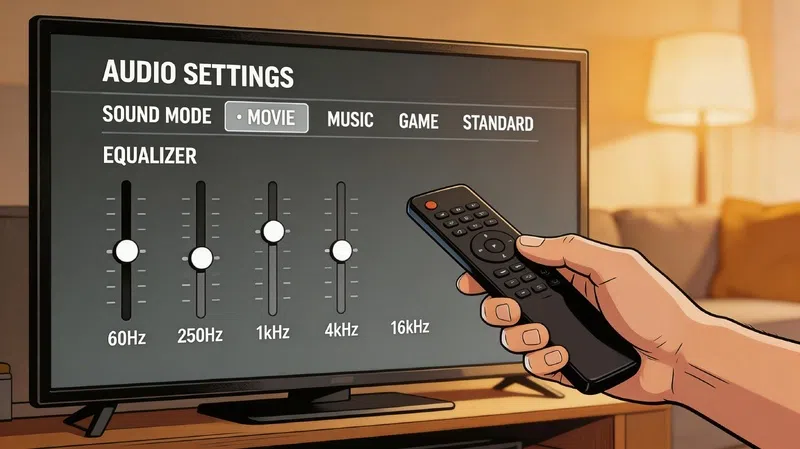
Start With the Equalizer Before Anything Else
Most people never touch the EQ on their TV. It’s buried in the audio settings, usually under something like Sound Mode or Advanced Audio, and it looks intimidating. It’s not.
The fix for muffled TV dialogue almost always involves two adjustments: pull the bass down and push the treble up. Bass frequencies sit low and heavy, and when they’re too prominent they create a muddiness that swallows mid-range sounds, including human voices. Treble is where the crispness of consonants lives. The “t” in “told,” the “s” in “said.” Boosting that range brings voices forward and makes them feel more articulate.
You don’t need to make dramatic changes. Dropping bass by 2 or 3 notches and raising treble by a similar amount is usually enough to hear a noticeable difference.
Try a Different Sound Mode First
Before going manual, it’s worth checking what sound mode your TV is currently set to. Movie mode is the default on a lot of sets, and it’s specifically designed to boost low frequencies for a cinematic feel. That’s the opposite of what you want when dialogue is already hard to hear.
Switch to Standard or News or anything labeled Dialogue or Speech. These modes are tuned to prioritize the frequency range where human voices sit. Night Mode is also worth trying, especially for late-night viewing. It compresses the dynamic range, softening explosions and loud effects while pulling quiet dialogue up to a more audible level.
In my experience, Night Mode fixes the problem for about half the people who try it. It’s not glamorous but it works.
What Your TV Brand Actually Offers
Most major manufacturers have their own named feature for dialogue clarity. They work differently and some are genuinely useful while others are mostly marketing.
| Brand | Feature Name | What It Actually Does |
|---|---|---|
| Samsung | Clear Voice / Amplify | Boosts vocal frequencies and high-end sounds to bring speech forward |
| LG | Clear Voice Pro / AI Acoustic Tuning | Enhances voice clarity; AI mode uses the remote mic to calibrate for your room |
| Sony | Voice Zoom | Raises dialogue and commentary volume independently from background audio |
| Vizio | Dialogue Enhancer | Targets clarity specifically for Dolby AC-4 encoded content |
These are usually found inside the Sound or Audio menu. Samsung’s is under Expert Settings. LG buries it in the Sound menu under a tab called Sound Optimizer or similar depending on the model year.
Worth trying all of them before reaching for external hardware.
The Soundbar Isn’t Always the Answer
People assume a soundbar will automatically solve unclear dialogue. Sometimes it does. Sometimes it makes things worse, and the reason is usually placement or audio format.
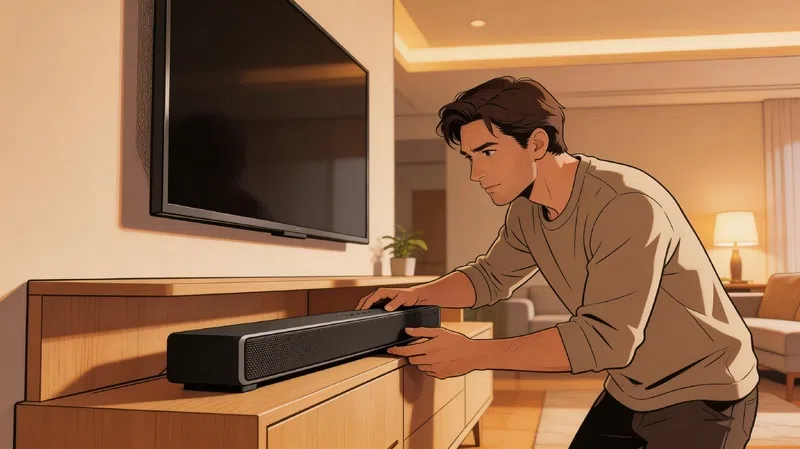
If you have a soundbar pushed back against the wall or sitting inside a cabinet shelf, the sound is bouncing around before it reaches you. A soundbar needs to sit at the very front edge of whatever surface it’s on, with nothing directly in front of it.
PCM vs Bitstream: The Setting Nobody Talks About
If you have a soundbar connected via HDMI ARC or optical and the dialogue is still muddy, check your TV’s digital audio output format. Most TVs default to Bitstream, which sends a compressed multi-channel signal to the soundbar. If the soundbar isn’t fully decoding that signal correctly, dialogue can get swallowed in the process.
Switching to PCM forces the output into uncompressed two-channel stereo. It sounds like a downgrade on paper, but for a lot of soundbars this actually produces cleaner, clearer dialogue because there’s no decoding step where things can go wrong. The setting is usually found under Sound > Audio Output or similar.
The Netflix 5.1 Issue
This one catches people off guard. Many video platforms default to 5.1 surround sound even when your hardware doesn’t support it. Netflix is particularly notorious for this.
If you’re watching something on Netflix and the dialogue sounds particularly buried, pause the content and go to Audio and Subtitles. You’ll likely see something like “English 5.1” selected. Change it to the standard stereo version, usually labeled “English” without the 5.1 tag. The difference is immediate and often dramatic.
When It’s Not Actually Your TV
Sometimes the problem isn’t your settings or your hardware.
If the muffled audio only happens with one specific show or movie and everything else sounds fine, the issue is almost certainly in the original mix. Some productions, particularly older films and certain prestige dramas, have notoriously unbalanced audio tracks. That’s a creative decision, for better or worse, and no amount of EQ adjustment fully compensates for it.
Subtitles are not a failure mode. They’re a legitimate solution, and most platforms let you customize the size, color, and style to make them less intrusive. If you’re watching something late at night and don’t want to fight with settings, just turn them on.
If you’ve changed your audio settings significantly over time and things have gotten progressively worse rather than better, a factory reset is worth considering. On most TVs this is under Settings > System > Reset or similar. It wipes everything back to default, which is sometimes exactly what you need when you’ve lost track of what you changed.
A Few Physical Things Worth Checking
Before spending money or doing a factory reset, take thirty seconds to look at the actual speakers on your TV. Speaker grilles get dusty. Some people leave plastic film on them after unboxing. Decorative objects end up in front of them. None of these are the primary cause of muffled dialogue but they don’t help.
Also check that any HDMI or optical cables connected to external speakers are fully seated. A cable that’s slightly loose at the connection point can produce exactly the kind of thin, compressed audio that sounds like a settings problem.
Firmware updates occasionally include audio processing improvements too. It’s not exciting, but it’s worth checking the system settings once in a while for pending updates, especially if the dialogue issue started after a recent software change.
The fix for unclear TV dialogue is almost never as complicated as it seems at first. It usually comes down to one wrong setting, one mismatched audio format, or one overlooked placement detail. Start with the EQ, work through the sound modes, and go from there.