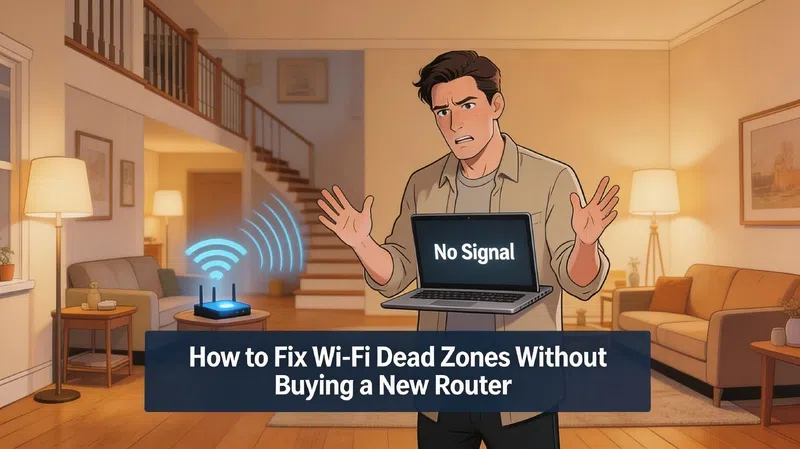

My router sat in the corner of the living room for three years. Right next to the TV, sandwiched between a speaker cabinet and a fish tank, basically surrounded by everything that’s terrible for wireless signals. I had no idea. I just thought our internet was bad.
Moved the router once. Problem mostly solved.
That’s not always the whole story, but it’s where most dead zone problems actually start.
The Real Reason You Have Dead Zones
People assume Wi-Fi dead zones mean weak internet service or an underpowered router. Sometimes that’s true. But in most homes, the router is perfectly capable, it’s just positioned in a way that guarantees failure.
Wireless signals don’t travel through walls the way water moves through a pipe. They radiate outward in all directions, and anything solid absorbs or deflects them. Wood absorbs some. Plaster absorbs more. Concrete is basically a wall of interference. Metal reflects the signal entirely, which sounds helpful until you realize it bounces it away from where you actually need it.
The fish tank thing, by the way, is real. Water is one of the worst materials for Wi-Fi penetration. So is your microwave when it’s running.
Where Your Router Should Actually Live
The single most effective thing most people can do costs nothing.
Place your router in a central, elevated location with as little obstruction between it and the areas you use most. Not in a cabinet. Not tucked behind the TV. Not in a corner because that’s where the cable comes in. A shelf in a central hallway, a high point in the living room, somewhere with open air around it.
Why Elevation Matters
Routers broadcast in a roughly horizontal plane. The higher the unit sits, the wider that plane reaches before hitting the floor. Ground-level routers spend a significant portion of their signal penetrating carpet and subfloor rather than reaching the couch six feet away.
Closets are the worst. Enclosed spaces trap heat, and routers that overheat throttle their own performance. It’s a thing, and it’s surprisingly common.
Understanding the Two Frequencies and When Each One Fails You
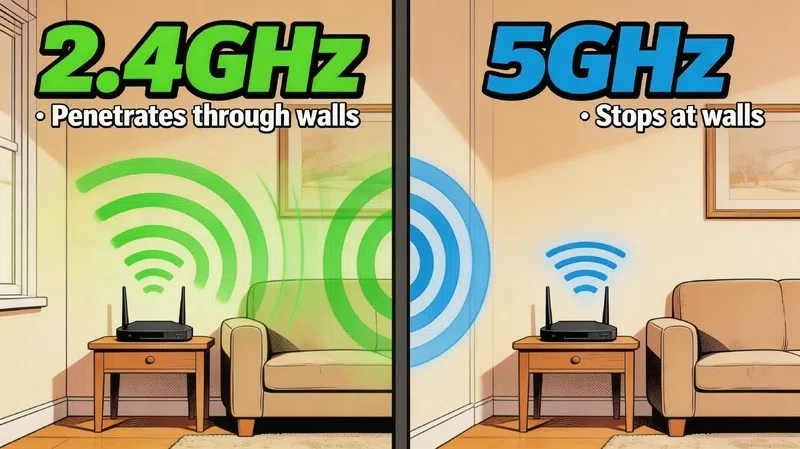
Most modern routers broadcast on two bands simultaneously. This is where a lot of confusion happens, because they behave very differently.
| Feature | 2.4GHz Band | 5GHz Band |
|---|---|---|
| Max Speed | Up to 600 Mbps | Up to 1300 Mbps |
| Range | Wide, covers large areas | Shorter, degrades through walls |
| Wall Penetration | Strong | Weak |
| Interference | High (microwaves, Bluetooth) | Low |
| Best For | IoT devices, far rooms, basic use | Gaming, video calls, close range |
| Channel Congestion | High (11 channels, often overlapping) | Lower (23 channels available) |
The 2.4GHz band is slower but it travels. It goes through walls better, covers more distance, and stays more stable at range. The tradeoff is that half your neighborhood’s devices are competing on the same limited channels.
5GHz is faster and less congested, but it loses strength quickly the moment it hits anything solid. If your bedroom is two rooms away from the router and you’re on 5GHz, that’s probably why videos buffer.
Most phones and laptops automatically connect to whichever band has the stronger signal at that moment. In my experience, that automatic selection doesn’t always make the smartest choice. If your device lets you manually separate the two networks and connect the far devices to 2.4GHz, it’s often worth doing.
When Repositioning Isn’t Enough
Sometimes the layout of the home genuinely works against you. Long thin apartments, multi-story houses, buildings with thick concrete walls. In those cases, repositioning helps but doesn’t fully solve it.
Mesh Systems vs. Extenders: What Nobody Explains Clearly
A Wi-Fi extender picks up your existing signal and rebroadcasts it. It sounds ideal. The catch is that it has to both receive and transmit on the same connection, which effectively halves available bandwidth. You’re also creating a second network that devices have to switch to manually, or that they sometimes refuse to leave even when you’ve walked away from the extender entirely.
Mesh systems work differently. The satellites communicate with the main router on a dedicated channel, separate from the one your devices use. Coverage is seamless, handoffs are automatic, and you don’t lose nearly as much speed. They cost more, but honestly, a basic two-unit mesh setup from a reasonable brand fixes dead zones in most standard homes permanently.
PowerLine Adapters: The Honest Version
Powerline adapters send network data through your home’s electrical wiring. You plug one unit into a socket near the router, run an Ethernet cable from router to adapter, then plug a second unit near the dead zone and connect whatever device needs internet.
On paper, manufacturers advertise speeds up to 2 Gbps. Real-world performance in a typical home tends to land somewhere between 10 and 50 Mbps. That’s enough for most things, but don’t expect gigabit speeds through your wall sockets.
They also don’t play nicely with surge protectors, UPS units, or multi-plugs. They need to be plugged directly into a wall outlet to function properly. Skip that step and they either don’t work at all or perform terribly.
For relocating a router from a corner to a more central position when you can’t run a cable, they’re genuinely useful. Just don’t expect the numbers on the box.
Finding Exactly Where Your Dead Zones Are
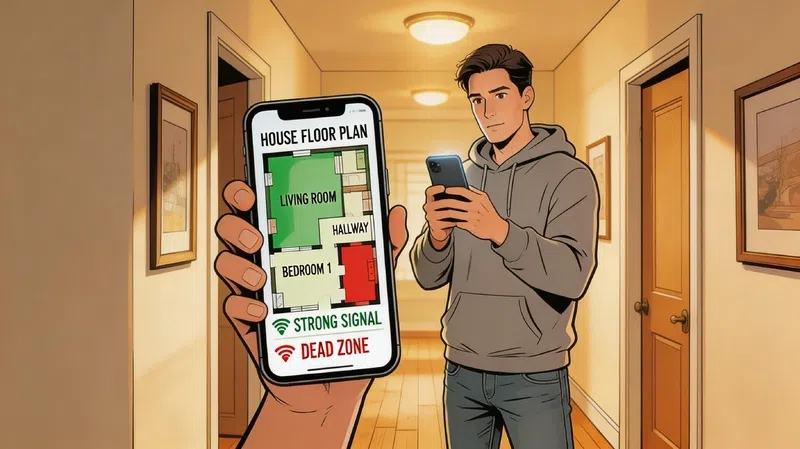
There are free apps that visually map signal strength across a floor plan. You walk through your home with your phone while the app records signal levels at each point, then it generates a color-coded heatmap. Green is strong, yellow is okay, red is where you’re suffering.
NetSpot does this well on both Windows and Mac. It gives you a precise visual of which rooms are underserved and helps you decide whether one extender in a specific spot would solve the problem or whether you need a more complete solution.
It takes maybe twenty minutes to walk your home and generate the map, and it removes all the guesswork from figuring out whether to buy hardware or just move the router.
A Few Things Worth Checking Before Anything Else
If you haven’t already: restart your router properly. Not just a quick power cycle. Unplug it, wait thirty seconds, let it fully boot up. Routers accumulate connection tables and cache data over weeks of uptime, and a full restart clears that. It doesn’t fix structural dead zones, but it often improves general performance enough that smaller issues disappear.
Check your router’s firmware too. Most people never update it. Manufacturers push performance and stability improvements regularly, and the factory firmware on a two-year-old router might be several versions behind. The update is usually in the admin panel under a maintenance or settings tab, and it takes about five minutes.
For antenna positioning, if your router has external antennas, try pointing one vertically and one horizontally rather than both straight up. It sounds counterintuitive, but the signal radiates perpendicular to the antenna direction, so two differently angled antennas create better multi-directional coverage than two parallel ones pointed at the ceiling.
Wirecutter’s router placement guide covers some of this in more detail if you want to go further. And if you’re running older WEP security, switching to WPA2 is worth doing regardless of dead zones, just generally.
The bedroom at the end of the hall probably doesn’t need a new router. It might just need yours in a different spot.
❓ FAQs About Wi-Fi Dead Zones
Q: What actually causes a Wi-Fi dead zone?
A: Usually a combination of router placement, building materials, and interference from other electronics. Concrete walls, metal objects, microwaves, and even fish tanks can all absorb or deflect signal significantly.
Q: Will a Wi-Fi extender fix my dead zone?
A: It can help, but it comes with real tradeoffs. Extenders split bandwidth and create a separate network. For a more permanent fix with better performance, a mesh system is worth considering.
Q: How do I know which band my device is connected to?
A: On most phones, you can check under Wi-Fi settings by tapping the network name. On Windows, go to the network properties. The frequency (2.4GHz or 5GHz) is usually listed there.
Q: Do PowerLine adapters actually work?
A: They work, but real-world speeds are much lower than the numbers on the box. Expect 10 to 50 Mbps in a typical home rather than the advertised 1–2 Gbps. They also need to be plugged directly into wall outlets, not power strips.
Q: How can I find out exactly where my dead zones are?
A: Use a free Wi-Fi heatmapping app like NetSpot. Walk through your home while it records signal strength, and it generates a visual map showing exactly where coverage drops off.
Q: My router is already central and the dead zones still exist. What next?
A: Check whether you can connect the affected devices specifically to 2.4GHz for better range, update your router firmware, and consider a single mesh satellite node placed roughly halfway between the router and the problem area.