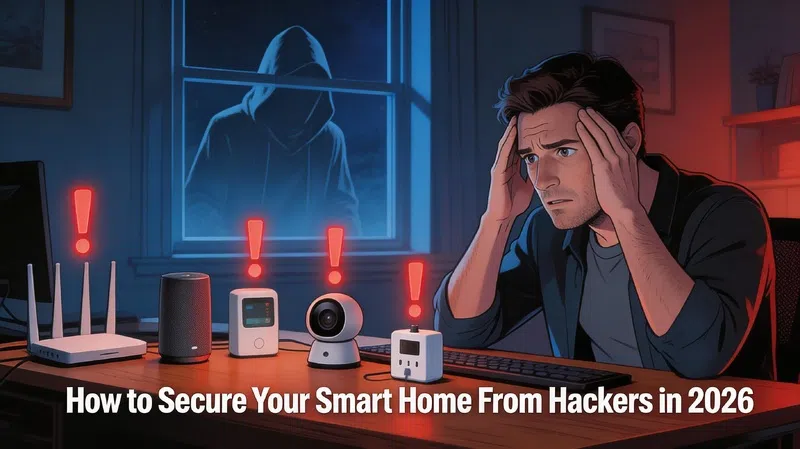

Nobody thinks about their smart bulb as a security risk. That’s kind of the problem.
I didn’t either, until I spent an afternoon reading through documented botnet exploits and realized that the same category of device — cheap, always-on, poorly maintained firmware — had been used to compromise hundreds of thousands of home networks globally. Not to steal the bulb’s data. To use it as a stepping stone to everything else on the same network.
That realization reordered how I think about all of this.
The Threat Is Real, and It’s Not Hypothetical
In early 2024, Wyze — a well-regarded budget camera brand — confirmed that over 13,000 user accounts were exposed in a breach that leaked photos and video footage captured inside people’s homes. Not a fringe brand. Not a knockoff. A company with millions of customers and a decent reputation.
Mirai-based botnets, which automate password guessing attacks against connected devices, have compromised over 260,000 units globally. These aren’t targeted attacks against specific households — they’re automated sweeps that probe millions of IP addresses looking for devices running default credentials or unpatched firmware.
The average US household now has around 17 connected devices. Each one is a surface. Most people have secured exactly one of them — their main Wi-Fi password — and left the rest to defaults.
The Flat Network Problem
Here’s the specific architecture issue that security experts have been shouting about for a few years now, and most people still haven’t addressed.
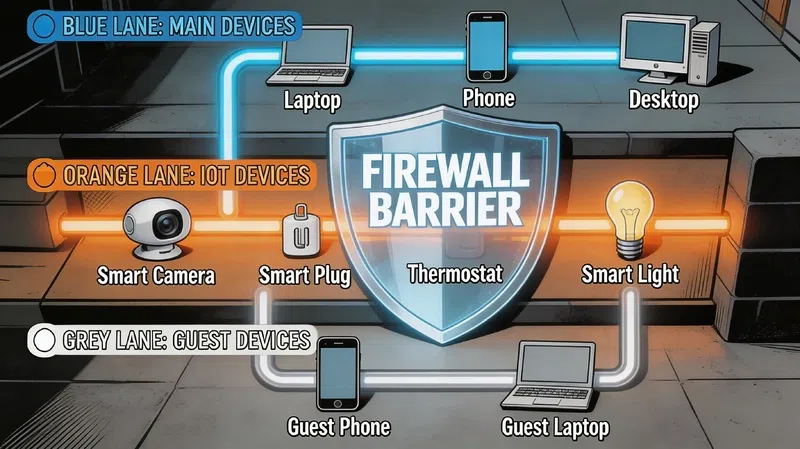
If your smart thermostat, your security camera, your work laptop, and your NAS drive are all on the same Wi-Fi network — what researchers call a “flat network” — then compromising any one of them gives an attacker a foothold to probe all the others. The smart bulb doesn’t have your banking passwords. But it might be able to see your laptop on the network, attempt connections, and eventually find something that responds.
The fix is network segmentation. The concept sounds technical but the implementation on most modern routers is genuinely accessible.
Three Networks, Not One
| Network Zone | What Goes On It | Access Rules |
|---|---|---|
| Main Network | Laptops, phones, NAS, workstations | Full access; can reach IoT network for control |
| Guest Network | Visitor devices | Internet only; no access to local devices |
| IoT Network | Cameras, smart plugs, bulbs, speakers, thermostats | Cannot initiate connections to Main Network |
The critical rule is directional: your phone on the Main Network can control a smart plug on the IoT Network. That smart plug cannot reach back toward your main devices on its own. One-way traffic.
Most routers that support VLANs — virtual local area networks — can implement this. Consumer-grade options from Asus, TP-Link (with OpenWrt), and Firewalla make it reasonably approachable without an IT background. Firewalla’s documentation is particularly clear for non-technical users if you want a starting point.
One warning: segmentation often breaks device discovery. Your phone might suddenly stop seeing your smart speaker because protocols like Bonjour only work within a single network segment. The workaround involves enabling selective multicast forwarding on your router — it sounds painful but it’s usually a single toggle once you find it.
Two Router Settings to Disable Right Now
UPnP — Universal Plug and Play
UPnP was designed for convenience. It allows devices on your network to automatically open ports on your router without requiring manual configuration. The problem is that it does this without asking you, which means malware on a compromised device can use UPnP to punch holes in your firewall from the inside.
The Canadian Centre for Cyber Security explicitly recommends disabling it on all home routers. Log into your router’s admin panel — usually at 192.168.1.1 or 192.168.0.1 — and find UPnP under Advanced or NAT Forwarding settings. Turn it off. Most home devices will continue working fine without it.
WPS — Wi-Fi Protected Setup
That button on the side of your router that lets you connect a device with a single press? Disable it. WPS uses an 8-digit PIN that can be brute-forced in a matter of hours with freely available tools. It was a well-intentioned convenience feature that turned out to be trivially exploitable. It should not be on.
Choosing Cameras That Don’t Work Against You
The smart home security camera market in 2026 is genuinely split along a privacy fault line: cloud-dependent systems versus local processing.
Cloud-dependent cameras — the majority of the consumer market — send footage to a manufacturer’s server for analysis. The AI detection happens off-device. This works reliably and tends to produce good results, but it means your footage, your home’s layout, and your daily patterns are sitting on someone else’s infrastructure. That’s not paranoia — that’s what the Wyze breach demonstrated.
Local processing cameras handle analysis on-device or on a local hub that stays in your home. Arlo’s SmartHub stores footage locally. Google Nest Aware Pro emphasizes on-device processing specifically to reduce data leaving the home. The trade-off is usually slightly higher hardware cost and occasionally less polished app experiences.
For most households, the practical question is: do you need remote cloud backup of footage, or is local storage sufficient? If local is fine, prioritize local. If you want cloud backup, at minimum choose a platform that gives you the option to encrypt footage before it leaves the house. Wirecutter’s home security roundup covers privacy ratings per platform in useful detail.
Passwords: The Part Everyone Knows and Nobody Does
In my experience, most people have stronger passwords on their streaming accounts than on their router admin panel. The router admin panel that controls every device in their home.
A few things that actually matter here:
16 characters minimum. Not because 12 is crackable instantly — it’s not — but because length is the single most efficient variable in password strength and it costs you nothing. A passphrase like “purple-kettle-lamp-runner” is both memorable and genuinely secure.
Use a password manager. Bitwarden is free, open-source, and well-audited. 1Password is excellent if you’re willing to pay. The goal is having unique credentials for every device and every smart home account — because when one platform gets breached, the attackers immediately try those same credentials on every other major service.
Multi-factor authentication on everything that supports it. Use an authenticator app — Google Authenticator, Authy — rather than SMS codes. SIM swapping attacks make SMS MFA weaker than it looks.
One thing that rarely gets mentioned: create a dedicated email address exclusively for smart home device registrations. It’s a throwaway account that you never check except for firmware notices. When a breach happens — and statistically, one eventually will — the exposed email isn’t connected to your bank, your identity, or anything that matters.
Ongoing Maintenance Is Not Optional
Most people set up their smart home devices once and never look at them again until something breaks. That works fine for convenience. It’s a problem for security.
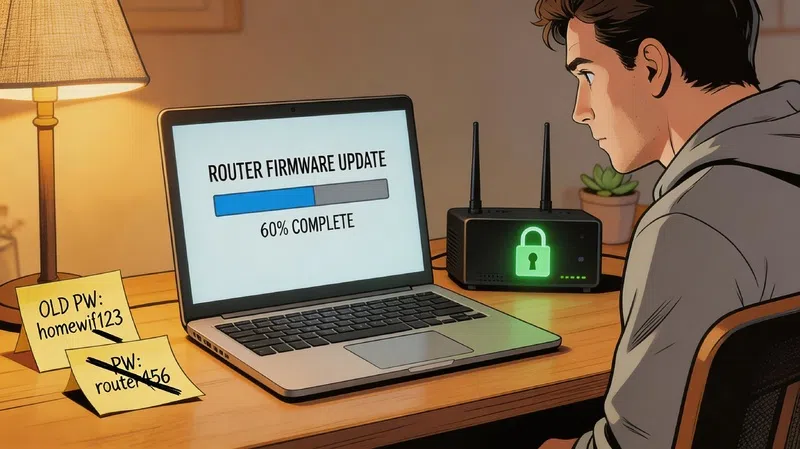
Firmware updates are how manufacturers patch the vulnerabilities that researchers find — and researchers find them constantly. The general guidance is to check for updates monthly and apply anything flagged as a critical security patch within 72 hours of release. Most modern smart home apps will notify you when updates are available; the issue is that people dismiss the notifications.
If you have devices that stopped receiving updates — older cameras, early-generation smart hubs — that’s worth taking seriously. An unpatched device sitting permanently on your network is a fixed vulnerability that only grows more exposed over time as exploits become more widely documented.
Power continuity is less obvious but worth mentioning: if someone cuts your power or your internet goes down, do your security cameras and smart hub still function? An uninterruptible power supply on your router and main security hub keeps the system running through brief outages. It also prevents the specific scenario where a physically present threat cuts power specifically to disable cameras before entering.
The SANS Institute’s home network security guide is dry but comprehensive if you want a checklist format for working through all of this systematically.
What “Secure” Actually Means
There’s a tendency in home security marketing to frame this as a product problem — buy the right camera, choose the right platform, and you’re protected. That framing is convenient for selling things.
The actual picture is more layered. The camera matters less than the network it sits on. The network matters less than the credentials protecting the devices on it. The credentials matter less than whether they’re actually being maintained over time.
A $400 AI security camera on a flat network with default router passwords and disabled firmware updates is, in practical terms, less secure than a $60 camera on a properly segmented network with strong credentials and monthly update checks.
The hardware sets the ceiling. The habits determine where you actually land.