

There’s a specific kind of frustration that hits when you sit down to watch something after a long day, grab the remote, and then just… wait. The menu stutters. The app takes forty seconds to open. You press the button again thinking maybe it didn’t register, and now everything’s doubled up and confused.
I’ve been there more times than I’d like to admit.
What’s annoying is that the TV wasn’t always like this. It was fine when you first bought it — snappy even. Then somewhere between the software updates and the new app versions, it started feeling like it aged ten years overnight.
It’s Not Really a TV. It’s a Cheap Computer Pretending to Be One
This is the thing most people don’t realize until they’re deep into troubleshooting forums at midnight.
Smart TVs run actual operating systems. They have processors, RAM, and internal storage — the same building blocks as any computer. The difference is that TV manufacturers cut serious corners on that hardware because nobody’s buying a TV based on its processor specs. They buy it for the screen.
So you end up with a machine that was barely powerful enough on day one, running software that gets heavier and more demanding every single year. The apps you’re using today are not the same apps that shipped with your TV. They’ve been updated dozens of times, they load more features, they track more data, they demand more resources — and the hardware underneath them hasn’t moved an inch.
That’s not a bug. It’s sort of just how it works.
Background Processes Nobody Told You About
Your TV isn’t just running whatever you’re watching. It’s simultaneously managing things you never asked for — automatic content recognition software that scans every frame looking for data to collect, update checkers, ad management systems, all of it humming away quietly in the background while you wonder why the guide menu feels like it’s loading through mud.
Disabling some of these is genuinely one of the more impactful things you can do, and we’ll get to that.
The Unplug Fix (Sounds Too Simple, Actually Works)
Here’s the thing about the power button on your remote — it almost certainly isn’t turning your TV off. It’s putting it into a kind of shallow sleep, a standby state where things keep ticking quietly in the background.
Real memory doesn’t get cleared. Processes don’t fully restart.
Unplugging the TV from the wall for a full minute forces a proper reset. Temporary files flush out, stuck processes stop, and the system comes back fresh. Some people who do this weekly notice a consistent improvement in responsiveness. In my experience, it doesn’t fix everything, but it’s the single fastest thing you can try before going deeper.
Clearing App Cache
Apps on your TV accumulate temporary data — cached files meant to speed things up that eventually start doing the opposite. When a cache gets corrupted or just overwhelmingly large, it slows loading and can cause apps to crash.
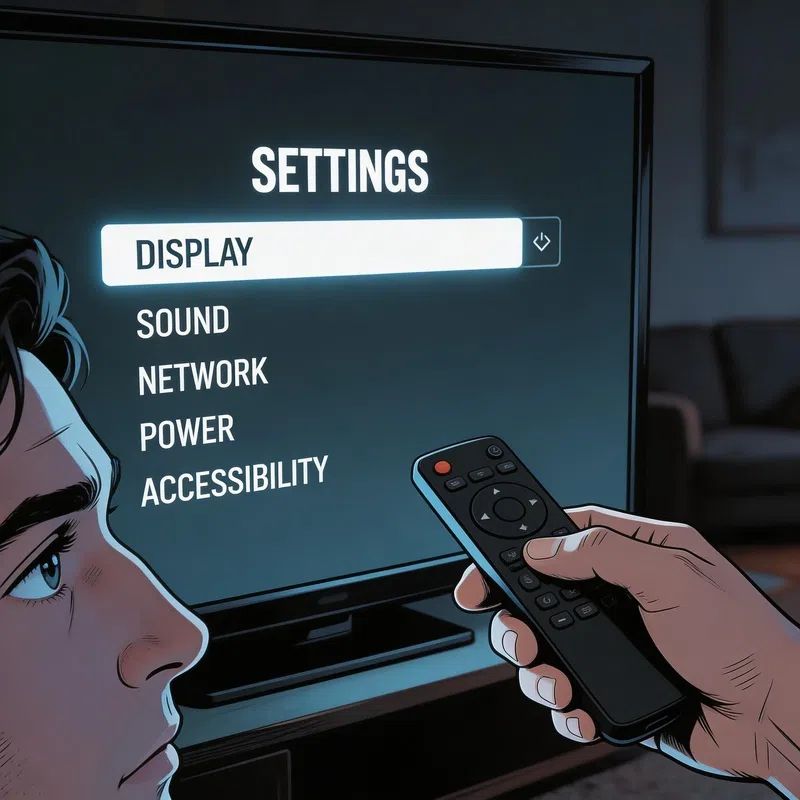
Most TV systems let you clear this manually, buried a few levels into the settings. It’s not glamorous work but it does make a difference.
Settings That Are Working Against You Right Now
A lot of factory defaults exist to make TVs look impressive in showrooms, not to make them run efficiently in your home. Motion smoothing is the big one — that processing-heavy effect that makes everything look weirdly like a soap opera filmed in a hospital. Turning it off reduces the load on the processor and, as a bonus, makes movies look like movies again.
Here’s a straightforward look at what’s worth changing:
| Setting | What to Do | Why It Helps |
|---|---|---|
| Motion Smoothing | Turn Off | Reduces CPU processing load significantly |
| Auto Content Recognition (ACR) | Disable | Stops constant frame scanning and data collection |
| Energy Saver Mode | Turn Off | Prevents processor throttling |
| Autoplay Previews | Disable | Stops background video loading on the home screen |
| DNS Settings | Set to 8.8.8.8 or 1.1.1.1 | Faster app loading response times |
| Menu Animations | Reduce or Off | Navigation feels noticeably more responsive |
None of these individually transform a struggling TV. Together, they add up to something meaningful.
The Network Is Often the Real Culprit
I used to assume slow app loading was always a hardware problem. But honestly, that’s not always the case.
If your TV is connecting over Wi-Fi from two rooms away, passing through walls and competing with every other device in the house, you’re not getting a stable connection — you’re getting whatever’s left over. An Ethernet cable changes that immediately. If running a cable isn’t realistic, powerline adapters — devices that push internet signal through your home’s electrical wiring — are a surprisingly effective middle option.
Worth checking before you start digging through settings menus.
When the TV Itself Is Just… Done
There’s a point where tweaks stop being enough.
The most honest solution for a TV whose internal hardware has simply fallen behind is to stop using that hardware for anything demanding. Plug in an external media device — a small stick or box that handles all the heavy lifting — and let the TV be a screen. That’s it.
These external devices tend to have faster processors, more RAM, and receive updates more reliably than TV operating systems do. Replacing one every few years costs a fraction of buying a new television.
The TV still works. The picture quality hasn’t changed. You’ve just stopped asking its weakest component to carry everything.
It’s a bit of a workaround, sure. But sometimes the workaround is the actual solution.