
Why Your TV Picture Looks Like a Soap Opera (And How to Fix It)
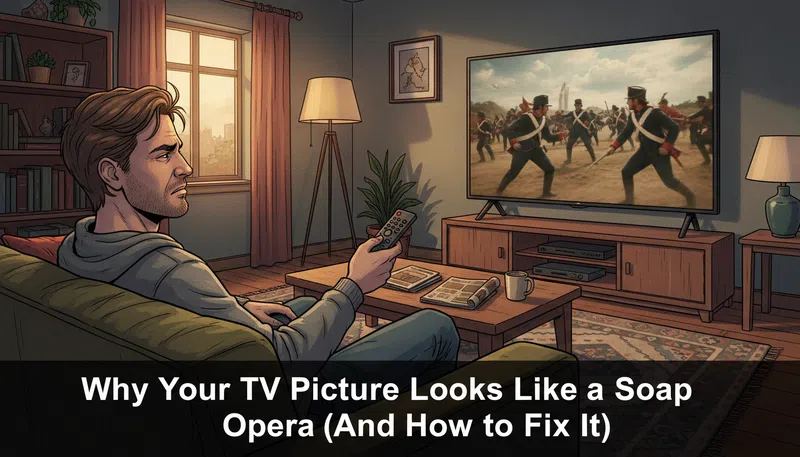
There’s a specific kind of frustration that hits when you sit down to watch a film you love — something you’ve seen in a theater, something that felt cinematic — and it looks wrong on your new TV. Not broken. Just… cheap. Weirdly fluid. Like someone reshot it with a camcorder.
That’s not your imagination.
What’s Actually Happening to Your Picture
Your TV is doing something to the image. Something it was programmed to do, turned on by default, and marketed to you as a feature.
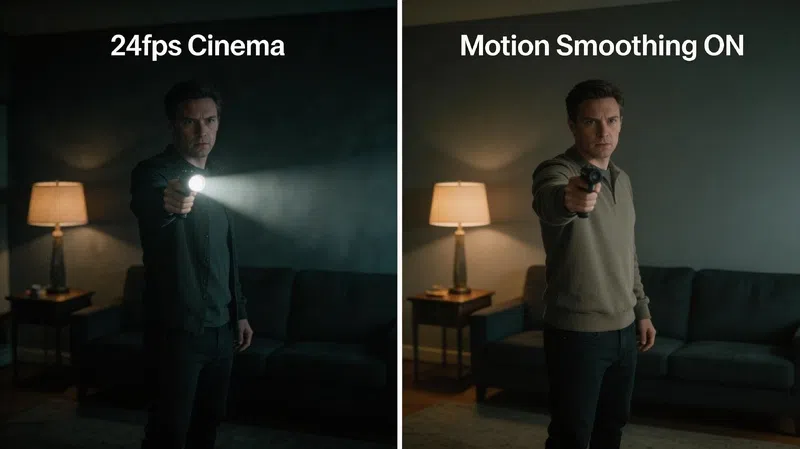
It’s called motion smoothing, or motion interpolation if you want the technical name. The way it works is almost insulting in its simplicity: your TV looks at two consecutive frames of a movie, guesses what a frame between them would look like, then invents it. Inserts a fake frame that never existed in the original footage. It does this constantly, invisibly, to raise the apparent frame rate from 24 frames per second — the rate almost every movie is shot at — up to 60, 120, sometimes 240.
The result is that everything moves with an unnatural fluency. Actors look like they’re walking around a real house. Period dramas feel like behind-the-scenes footage. Horror movies lose their tension because the image feels too present, too immediate, too real.
Hence the soap opera comparison. Soap operas were historically shot on video at 30fps or higher. Now your brand new $1,400 television is making Christopher Nolan look like daytime television.
Why TVs Do This At All
It’s not malicious. It’s not even really wrong — it’s just aimed at the wrong content.
Modern LCD and OLED displays use what’s called sample-and-hold technology. They hold each frame completely static until the next one arrives. The problem is that human eyes are built to track continuous movement, so holding an image still while your eye expects it to keep moving creates a kind of visual conflict — a blur, a smear on fast-moving objects, a judder that feels like the picture is stuttering.
Older TVs didn’t have this problem, weirdly. CRTs used phosphors that faded quickly after being lit, which meant each frame naturally decayed before the next arrived. Film projectors use a spinning shutter that briefly blacks out the screen between frames. Plasma displays worked similarly — brief bursts of light rather than sustained holds.
Those technologies handled motion in a way that happened to match how our brains process visual information. Sample-and-hold doesn’t, at least not without help.
Motion interpolation is the help. And for sports, reality TV, live news — anything shot at 30fps or 60fps — it works reasonably well. Watching a football game with smoothing enabled genuinely is clearer. The problem is manufacturers leave it on for everything, including the 24fps film you rented for movie night.
Every Brand Has a Different Name For It (Of Course)
This is the part that trips people up. Every manufacturer invented their own name for the same feature, which makes finding it feel like a scavenger hunt.
| TV Brand | Feature Name | Where to Find It |
|---|---|---|
| Samsung | Auto Motion Plus / Picture Clarity | Settings → Picture → Expert Settings |
| LG | TruMotion | Settings → Picture Options → TruMotion |
| Sony | Motionflow | Picture Settings → Motionflow |
| Roku TV | Action Smoothing | Star (*) button → Picture → Expert Settings |
| TCL | Action Smoothing | Picture Settings |
| Hisense | Motion Enhancement | Picture Settings |
| Vizio | Motion Control | Picture Menu |
| Google TV | MEMC / Motion Enhancement | Display Settings |
The quickest shortcut, if your TV was made in the last three years or so, is to look for Filmmaker Mode in your picture presets. It was developed specifically to address this — it disables smoothing, sharpening, and most post-processing automatically, and applies when you switch to it. It’s not perfect on every TV, but it’s a reasonable starting point without digging through menus.
How to Actually Turn It Off
Samsung
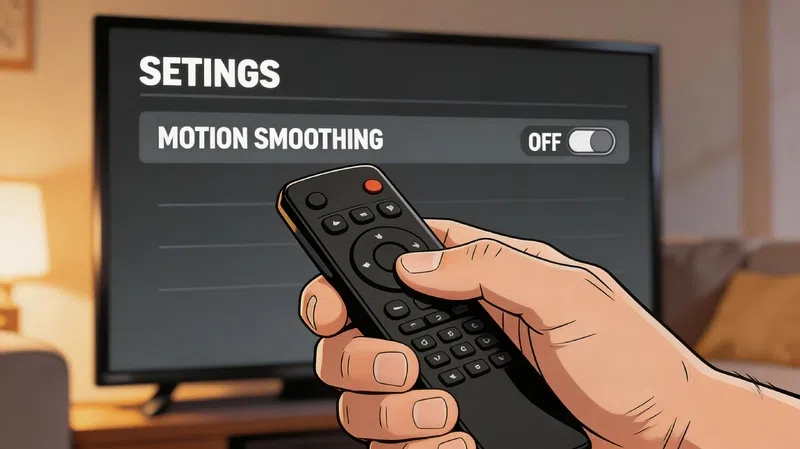
Go to Settings → Picture → Expert Settings → Auto Motion Plus Settings (it might appear as “Picture Clarity” on newer models). Set it to Off. If you want finer control, the Custom option lets you drag both Blur Reduction and Judder Reduction down to zero while leaving LED Clear Motion off too.
LG
Settings → All Settings → Picture → Picture Options → TruMotion. Switch it to Off. Some LG AI ThinQ models will apparently respond to a voice command — something like “turn off motion smoothing” — though in my experience the menu is more reliable.
Sony
Sony’s is slightly annoying because on some Android-based models, fully disabling Motionflow requires enabling Game Mode. That’s not intuitive. Game Mode reduces input lag but also bypasses certain image processing pipelines, which is the only way to fully kill the smoothing on affected models. Worth checking Sony’s support page for your specific model number.
Roku TV
While something is playing, press the Star (*) button. That opens a picture settings shortcut. Go to Customize Picture → Expert Settings → Action Smoothing → Off. Takes about 45 seconds once you know where to look.
Fire TV
Hold the Home button during playback, go to Picture → Advanced Options → Motion Smoothing → Bypass. Done.
The Fixes That Aren’t Really Fixes
There are a couple of alternative approaches the industry has tried that are worth knowing about, mostly because they come with their own problems.
Dark Frame Insertion mimics what film projectors do — it inserts brief black frames between real ones, which fools your brain into processing motion more naturally. It works. The catch is that it noticeably dims the picture, which matters a lot on HDR content where peak brightness is part of the experience. It also introduces a subtle flicker that some people find distracting in dark rooms.
High Frame Rate filmmaking — shooting at 48fps instead of 24fps — has been attempted by a handful of directors. The Hobbit trilogy did it. Avatar: The Way of Water experimented with it in select sequences. Audience reactions were, to put it diplomatically, mixed. The clarity is real, but so is the uncanny valley feeling. It solves motion blur by removing the look that audiences associate with cinema, which turns out to be a harder sell than expected.
Newer AI-based interpolation, like what madVR Labs has been developing, attempts to do smarter guessing — tracking objects rather than just blending pixels. It reduces the ghosting and halo artifacts that cheaper implementations create around fast-moving edges. Whether it’ll trickle down into consumer TV firmware in any meaningful way is honestly unclear right now.
One More Thing Worth Knowing
When you switch to a cinema or movie preset — or Filmmaker Mode — the picture might initially look darker than what you’re used to. That’s intentional. Those modes are calibrated closer to reference brightness standards.
The temptation is to compensate by cranking up the backlight, which is fine, or by re-enabling smoothing, which defeats the whole point. Increase the Backlight or OLED Light slider instead of touching anything labeled “motion” or “clarity.”
The picture will look less immediately impressive in a bright showroom kind of way. It’ll look more like what the people who made the thing intended you to see.
There’s a difference between impressive and accurate. Most TVs, out of the box, are optimized for impressive. That’s how they sell on a showroom floor with fluorescent lights overhead and ten other TVs competing for attention.
You’re watching at home. You can afford accurate.
For additional calibration guidance, Rtings.com’s calibration database and the Imaging Science Foundation are both solid resources for going deeper if you want to take it further than just turning off one setting.